Specify Desktop
Your product. Your knowledge. Your agents. One workspace.
Understand the architecture, keep the reasoning beside the code, and work with coding agents from your desktop. Explore six connected workflows in real app screenshots.
A workspace connected to your development environment
Bring your coding agents
Connect Codex or Claude in desktop settings, then choose the available provider and model in chat. Provider sign-in and usage remain tied to your account.
Give work a project
Select a local folder in the desktop app and use that project as the working context for an agent conversation.
Keep the knowledge connected
Move between documents, editable canvases, conversations, and project activity without losing the workspace context.
01 / Architecture diagrams
Make the architecture a place you can work.
Open an editable canvas to inspect the components, boundaries, and connections in your product. Keep the diagram close to the documents and conversations that explain it.
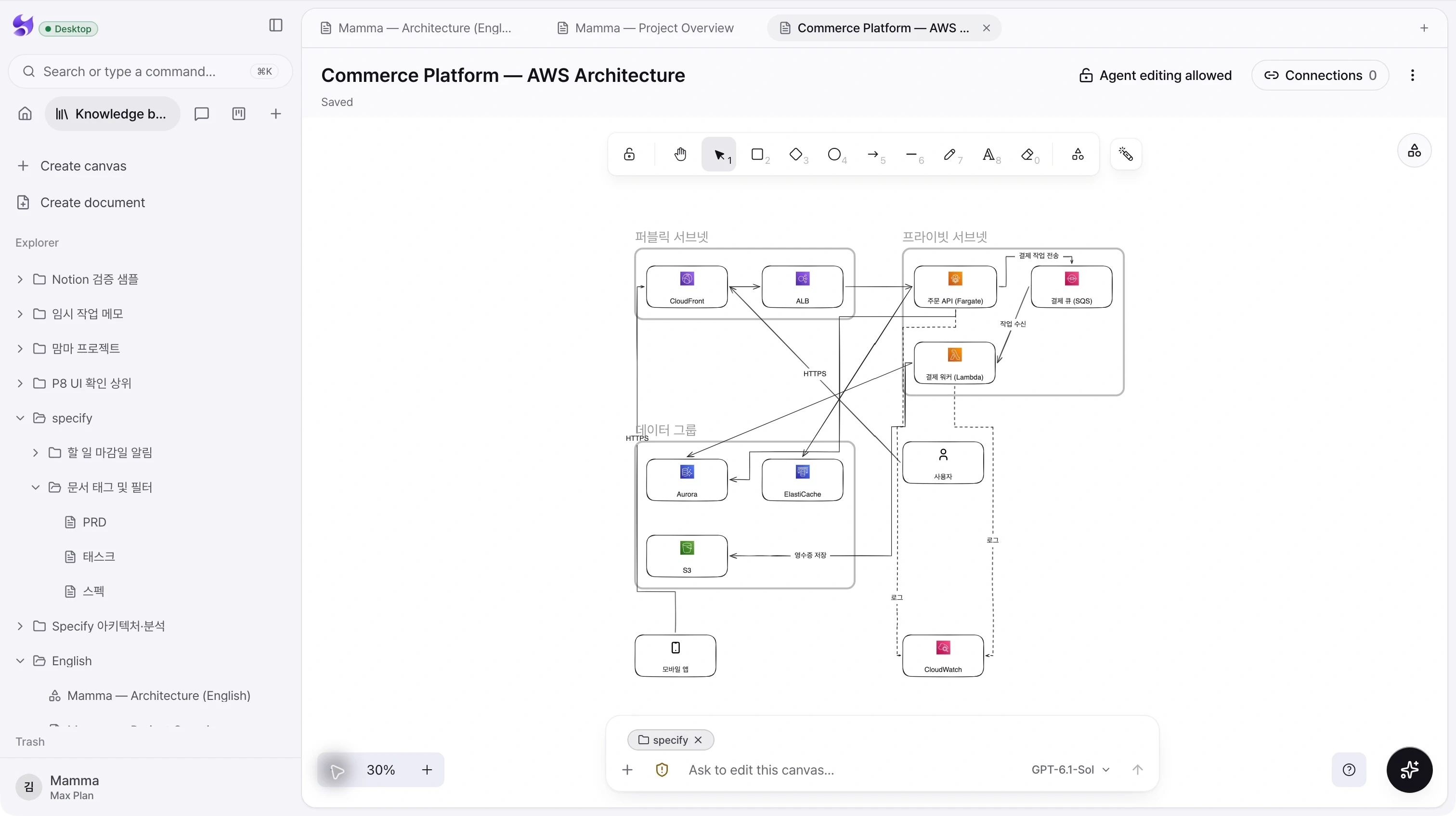
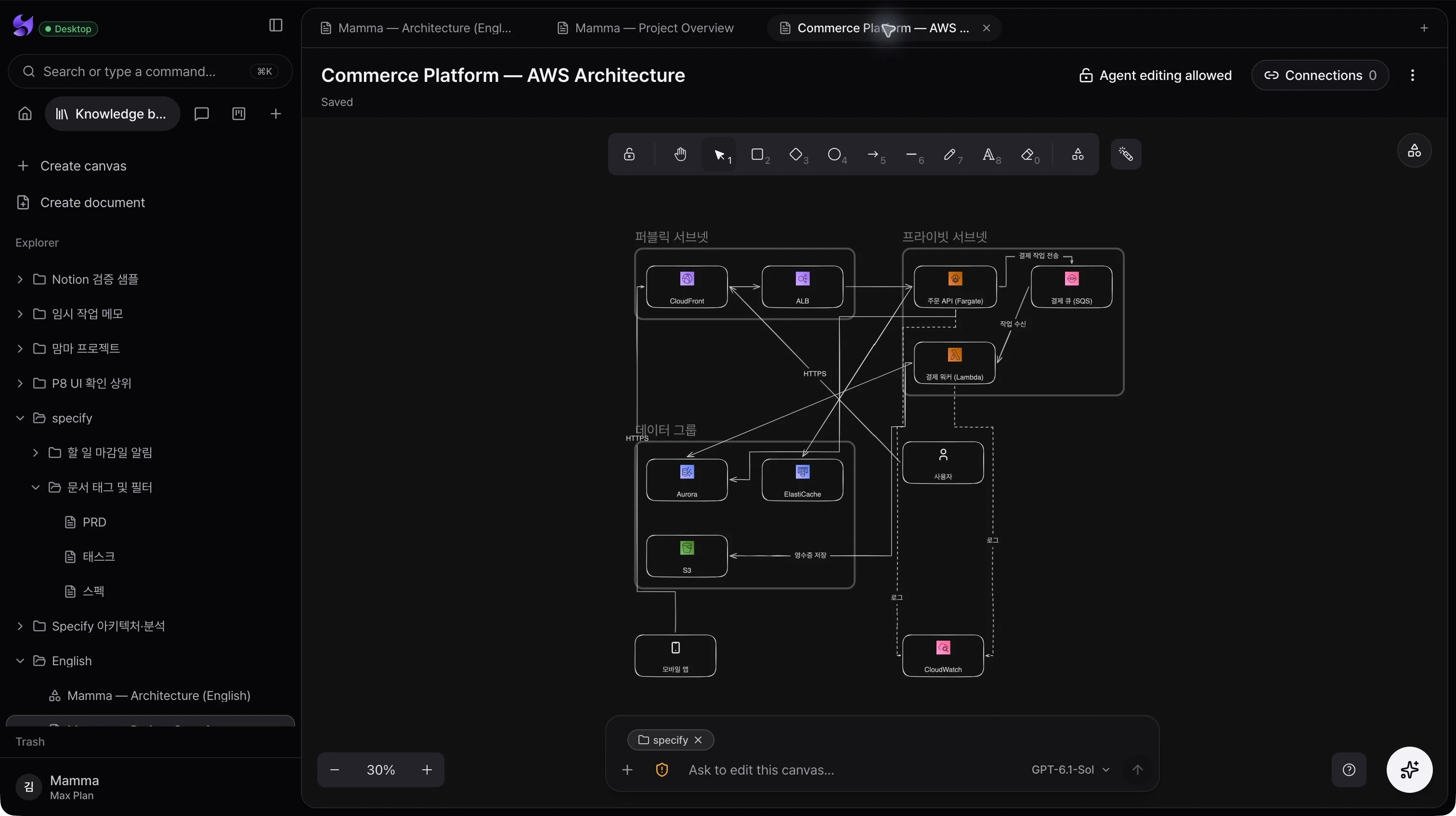
An editable system map
Work with shapes, connectors, text, and icons on a zoomable canvas. Adjust the structure yourself as the design evolves.
Conversation beside the canvas
Use the canvas composer to ask an agent about the design or request a change with the current canvas as context.
Linked knowledge and editing control
Inspect connected documents and use the agent editing lock when a canvas should remain available for people to edit without agent changes.
02 / Development docs
Keep the explanation next to the implementation.
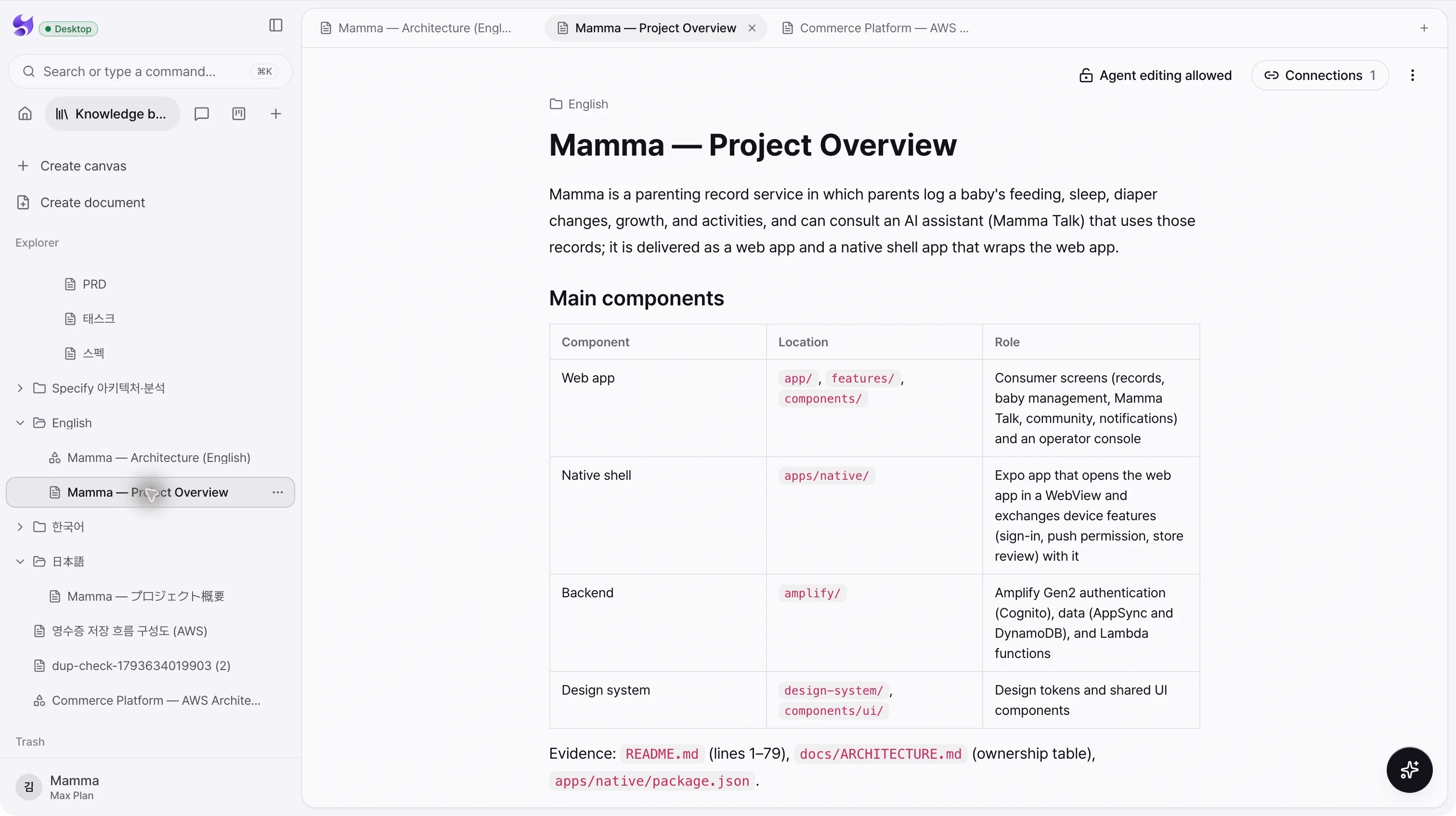
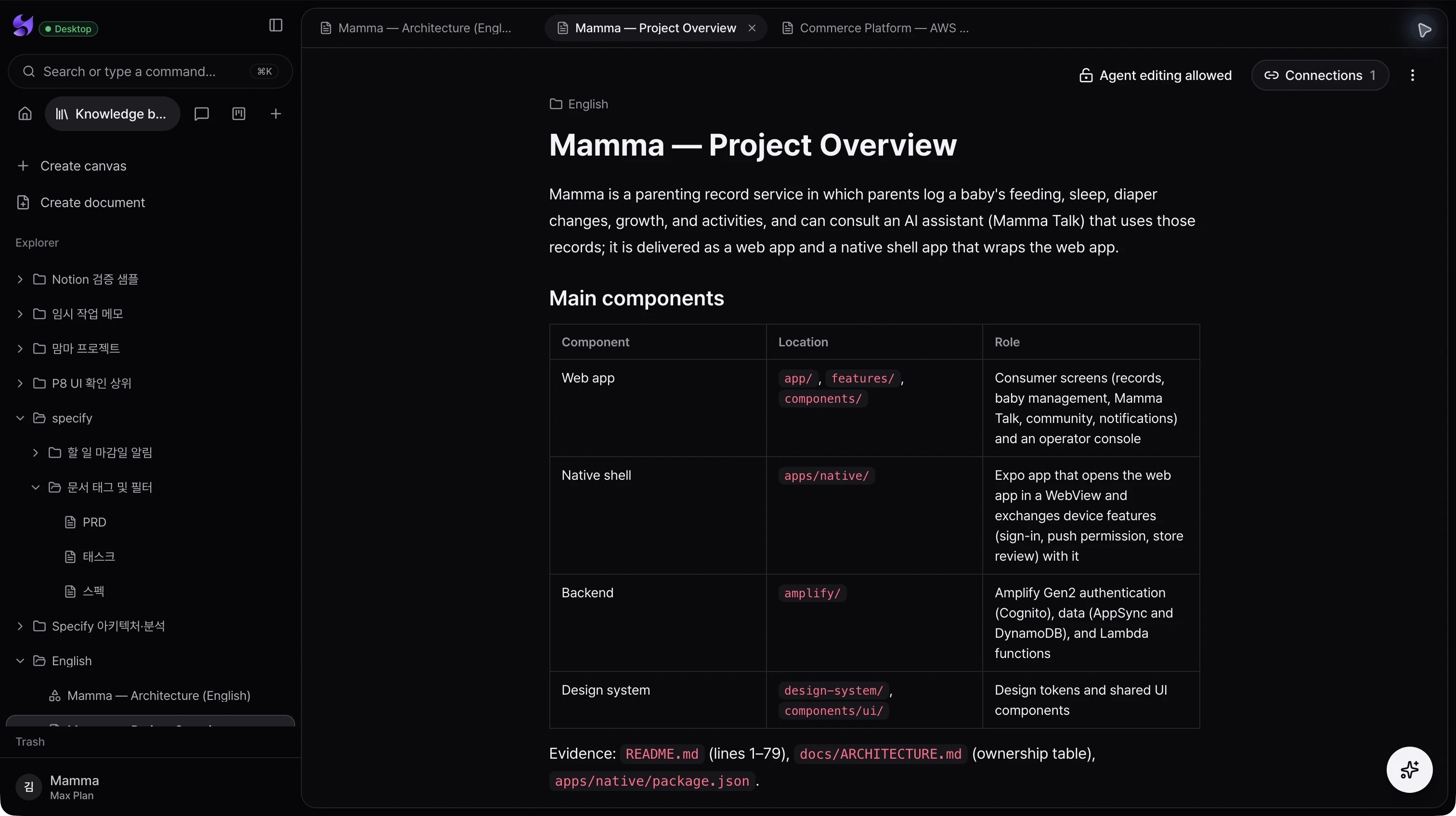
Read a project by its components, responsibilities, and execution paths. Rich documents give source references, tables, and decisions a home that both people and agents can return to.
Readable technical detail
Organize architecture notes, requirements, and feature behavior with headings, tables, lists, code, and embedded diagrams.
Evidence in context
Keep source paths and references alongside the explanation so a reviewer can trace a statement back to its basis.
A shared working document
Find documents in the explorer, open related material in tabs, and control whether agents may edit the document.
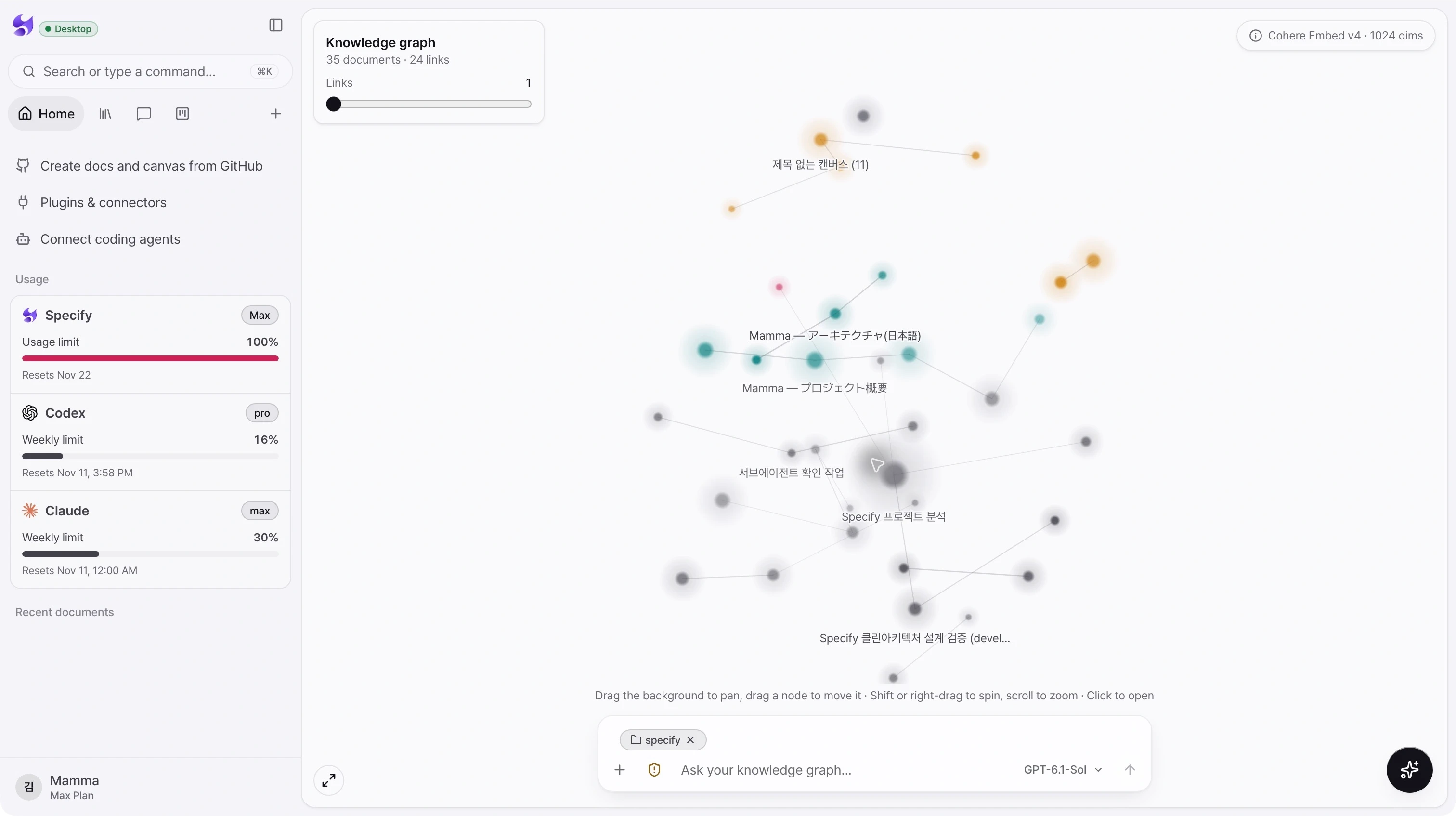
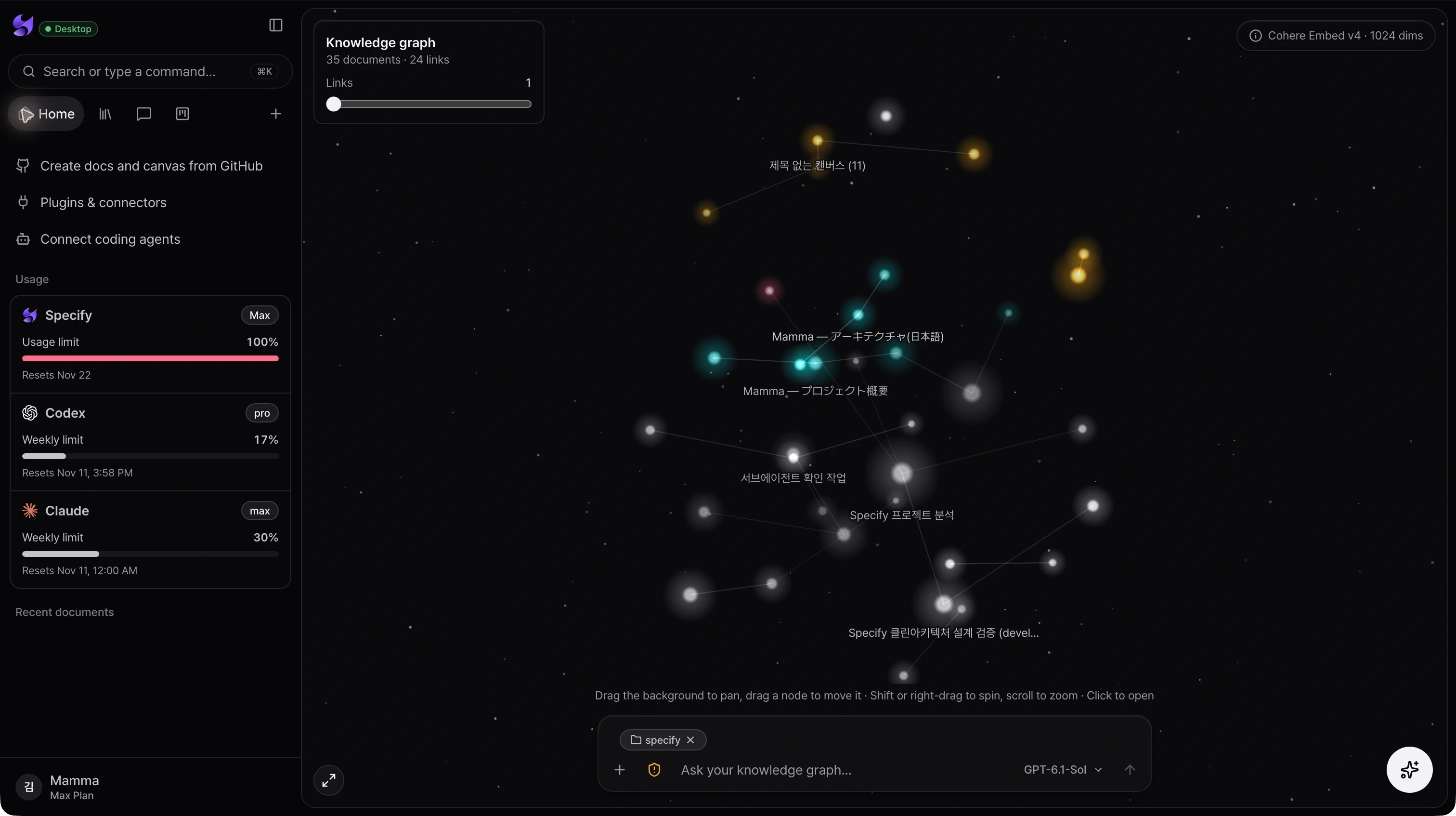
03 / Knowledge graph
See the relationships your folders cannot show.
Explore documents as a navigable map of related meaning. Move from the shape of your knowledge to an individual document, then ask a question with the workspace close at hand.
Semantic connections
Documents with related meaning are linked in the graph, helping you discover relevant material beyond a folder hierarchy.
Explore at your own scale
Pan, rotate, zoom, fit the graph to the screen, and adjust the number of links to change how much structure is visible.
From discovery to a question
Open a document from its node or use the graph’s chat composer to begin exploring the knowledge with an agent.
04 / Agent chat
Talk through the work with the agent you choose.
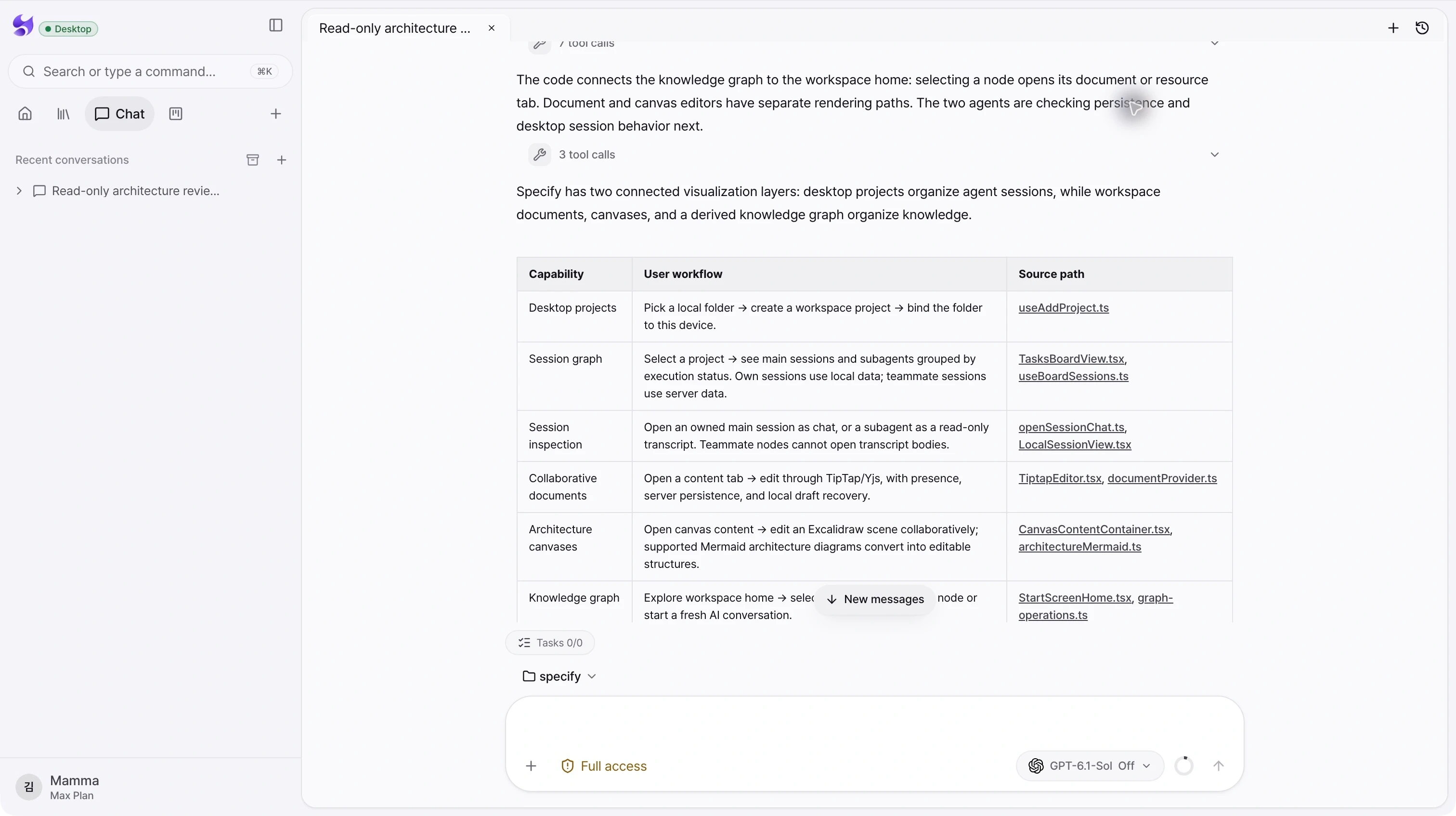
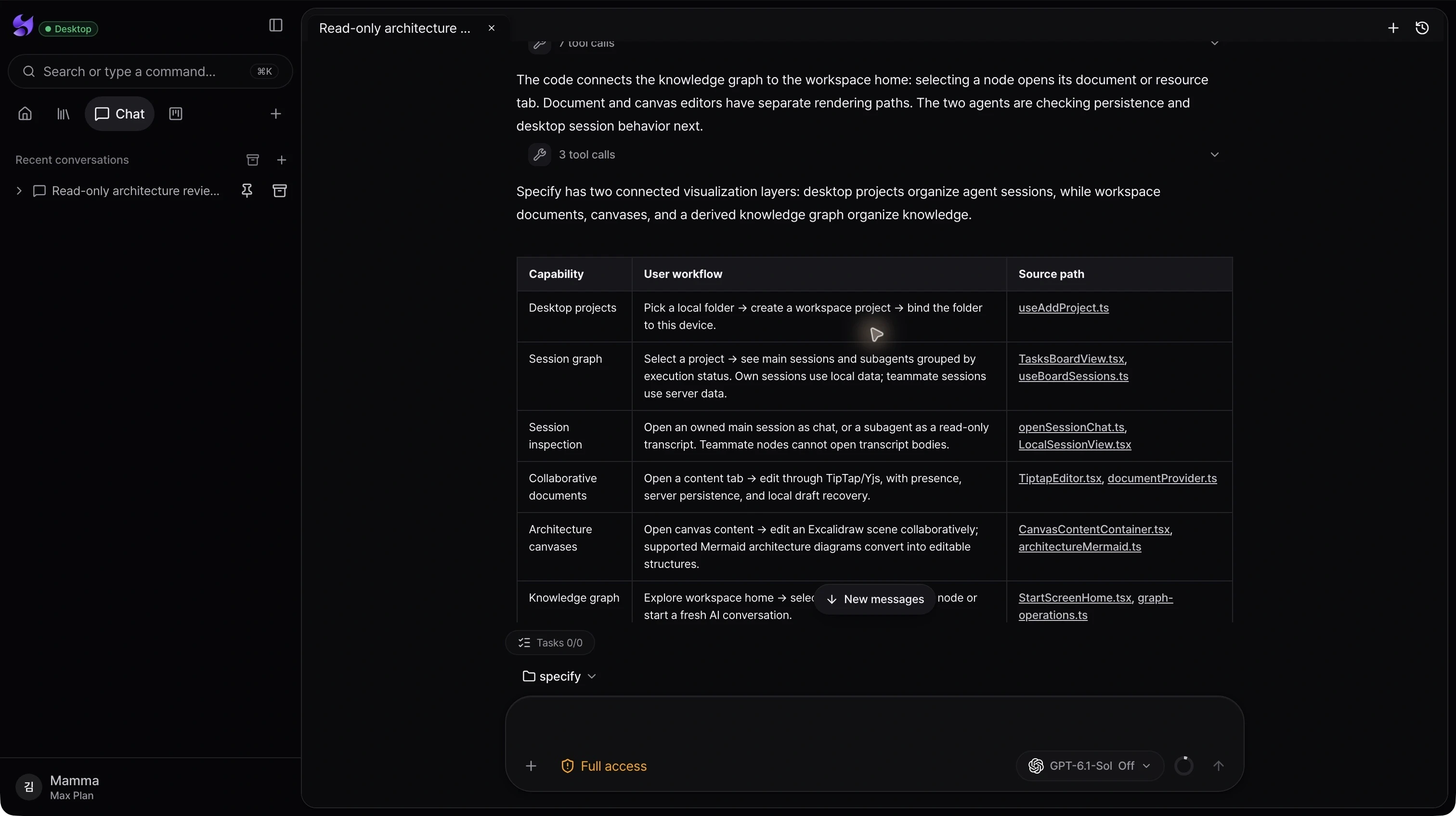
Use a conversation to understand a codebase, inspect knowledge, and work through changes. Select a connected coding agent, attach project context, and keep its responses and tool activity together.
Provider and model selection
Choose from the agents and models available to your setup. Codex and Claude connections are configured in the desktop app.
Project-aware conversations
Select a project for a conversation so the local agent can work with the corresponding folder, and follow up in the same chat.
Visible work and control
Read responses and tool activity, inspect tasks, and respond to approval or input requests when the selected agent requires them.
05 / Projects
Give every conversation a project to come back to.
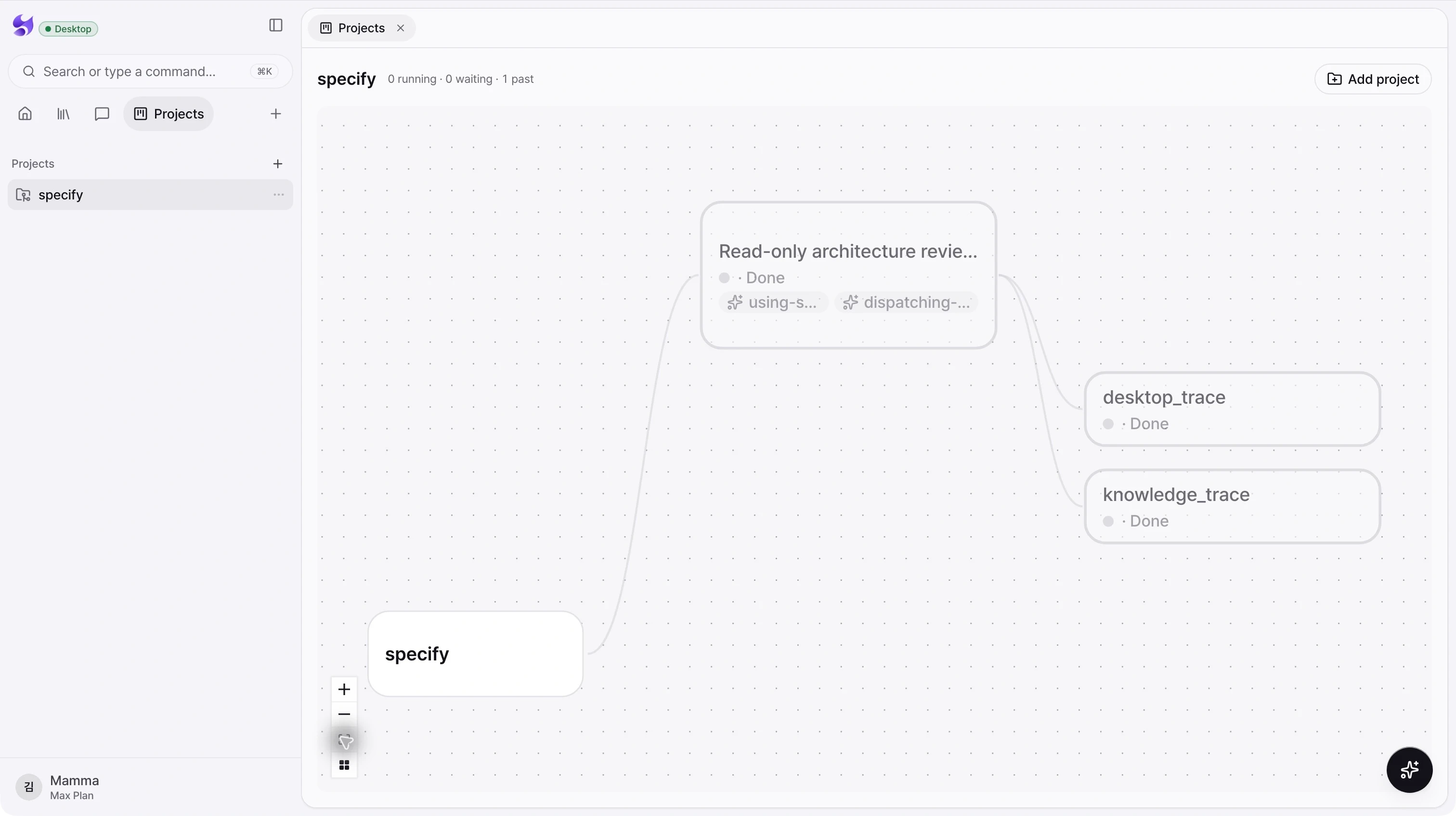
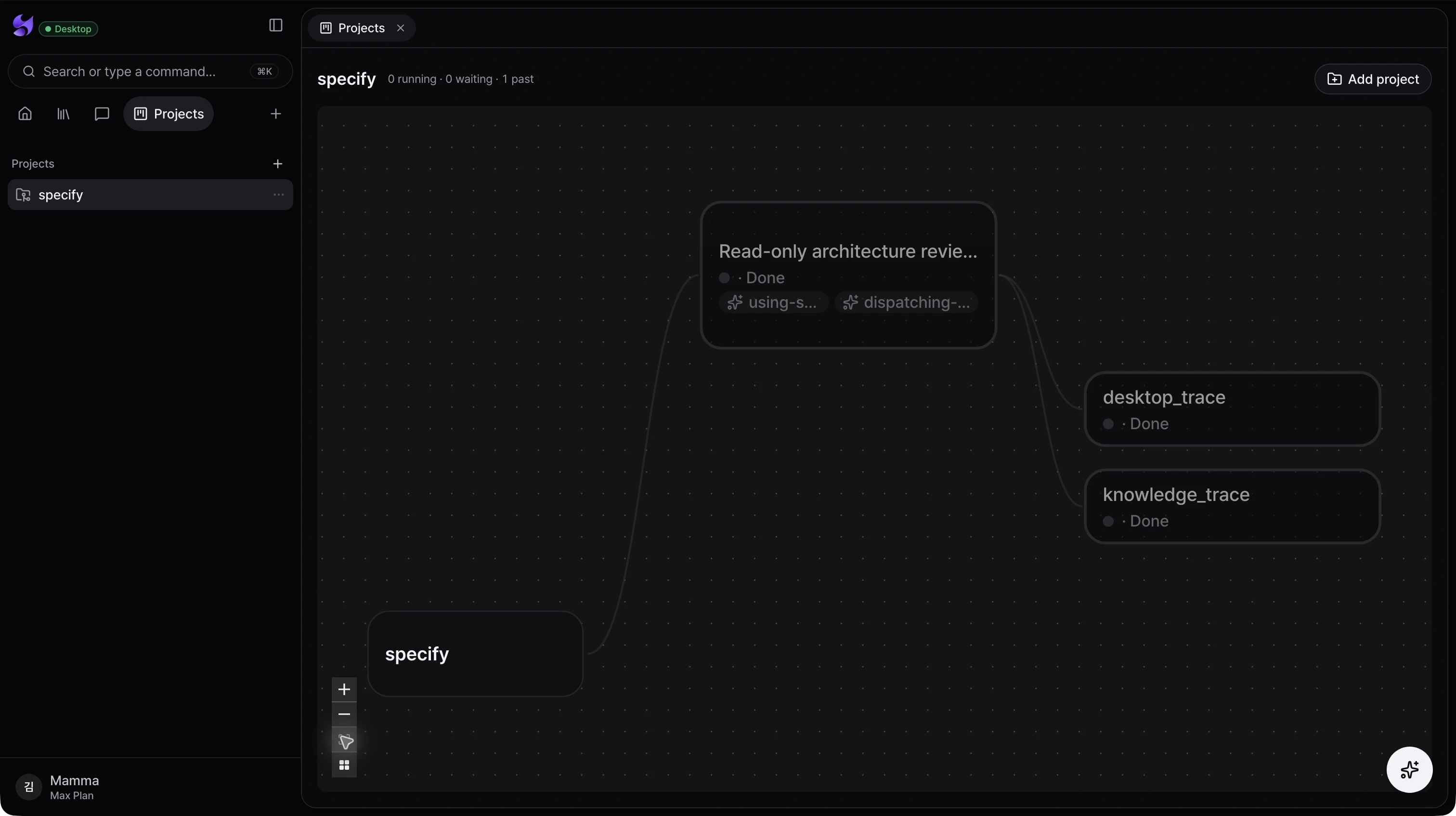
Connect a folder on your computer to a project in Specify. Switch between projects and see the agent work associated with the selected project instead of searching through unrelated conversations.
Local folder context
Add a project by selecting a folder in the desktop app. Choose that project when starting work in chat.
Project-level activity
The Projects view gathers the selected project’s runs into one view, separating active work, waiting work, and past work.
Open the work behind a node
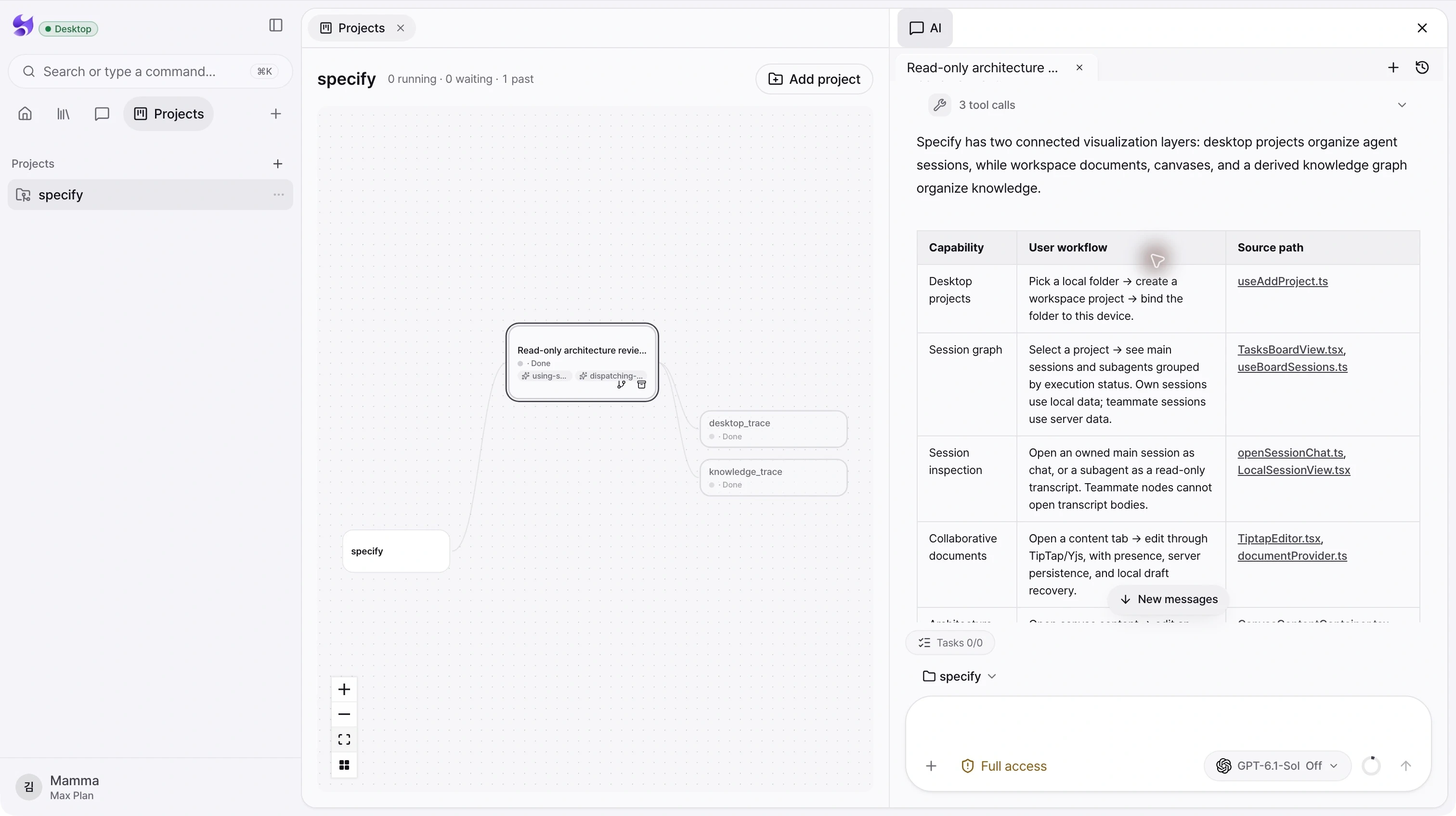
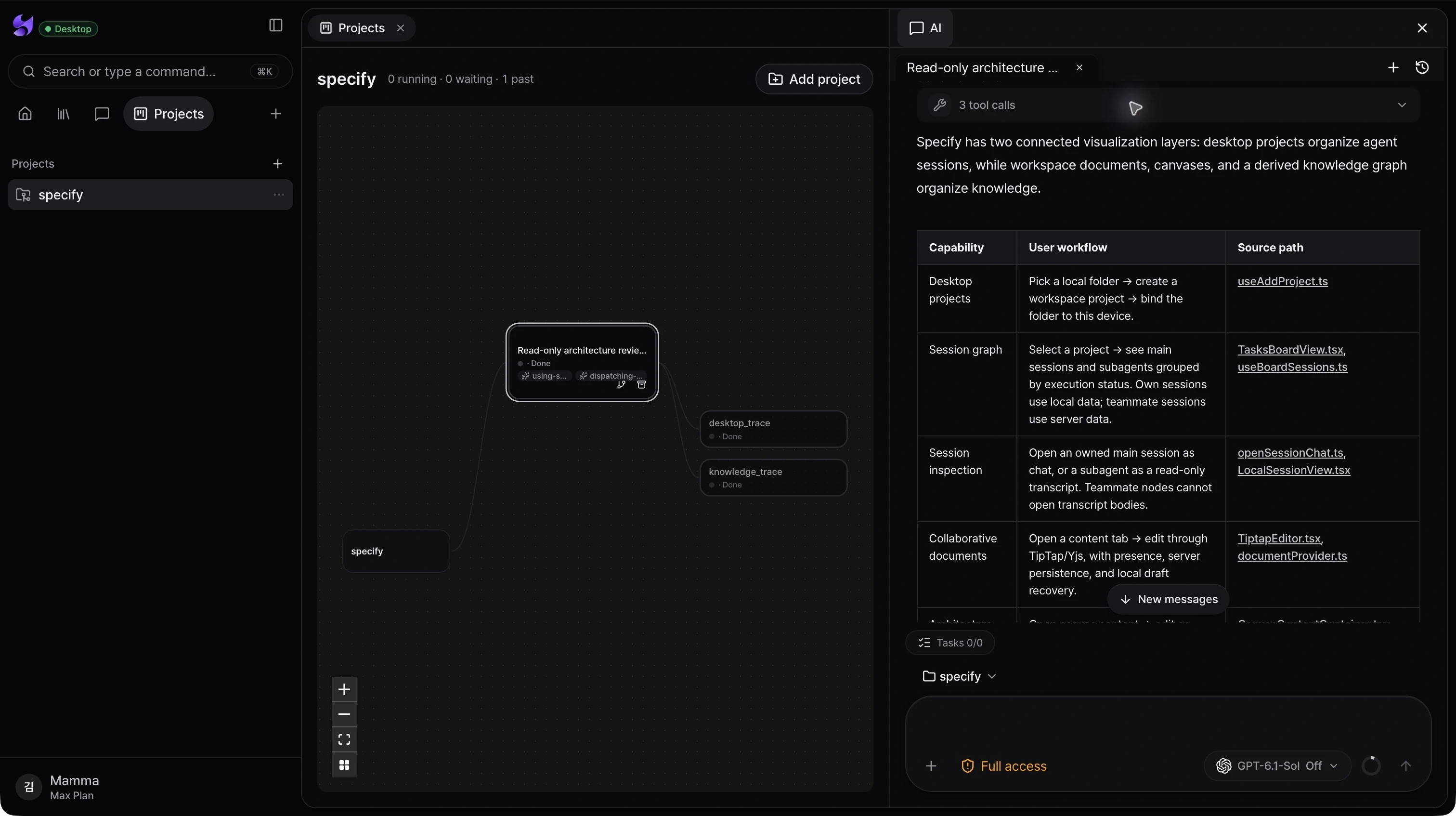
Select one of your execution nodes to open its conversation in the side panel while keeping the project map visible.
06 / Session visualization
Follow the work from the main session to its branches.
See a project, its conversations, and reported subagent activity as a connected execution graph. Use the map to understand where work is happening and open the conversation behind it.
Main and subagent structure
The graph connects the project to main conversations and the subagent nodes reported by their execution events.
Status you can navigate
Distinguish running, waiting, and past executions. Zoom, fit the view, and move nodes to make a busy project easier to read.
Continue or organize finished work
Open your own session, archive completed conversations, or fork supported completed Codex conversations to continue from their context.
See the whole product. Then make the next move.
Choose the desktop download for your Mac, sign in, and bring your projects and coding agents into Specify.
Download Specify Desktop