Specify Desktop / Projects
Give every conversation a project to come back to.
Connect a folder on your computer to a project in Specify. Switch between projects and see the agent work associated with the selected project instead of searching through unrelated conversations.
Inside the app
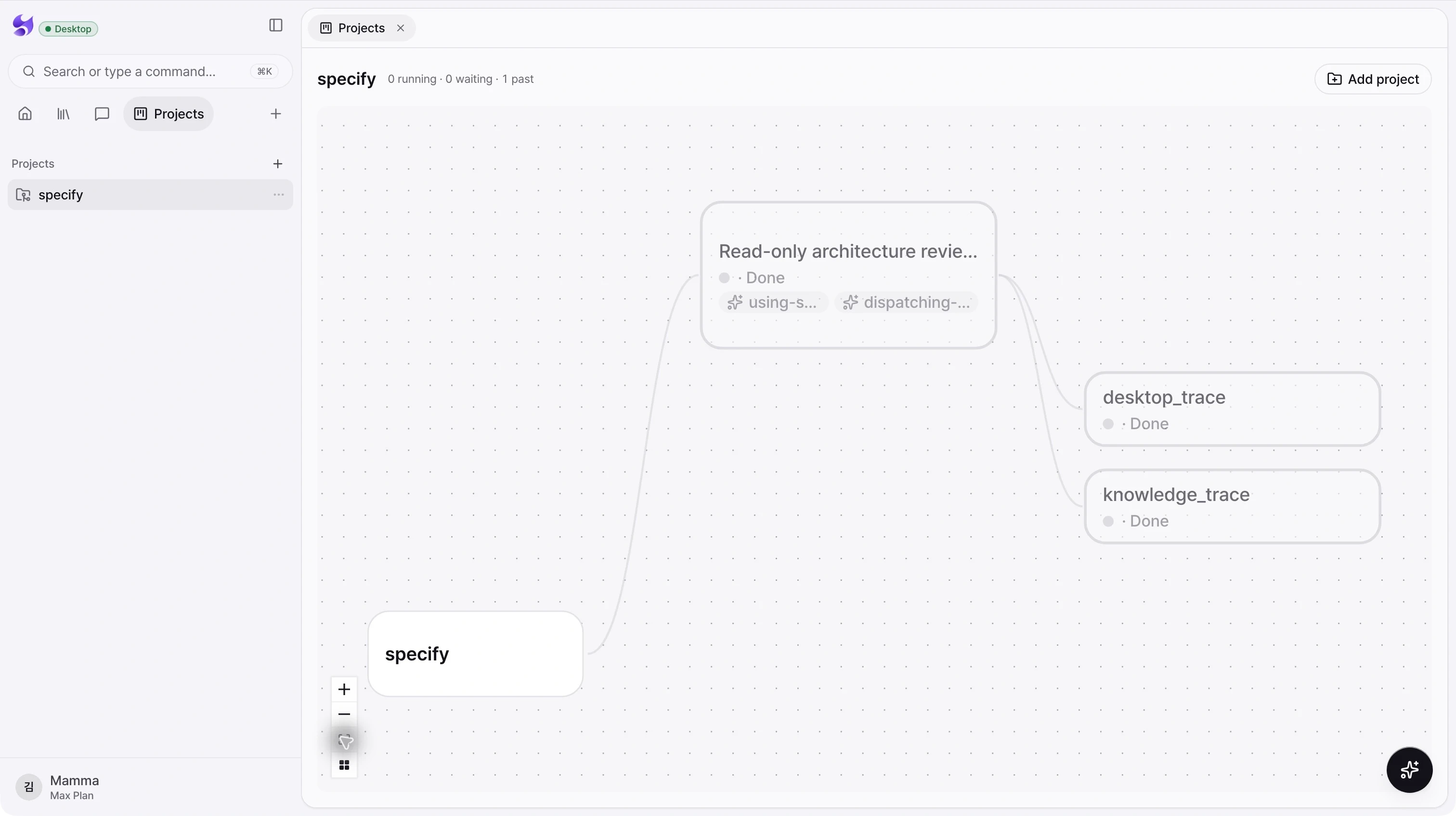
Local folder context
Add a project by selecting a folder in the desktop app. Choose that project when starting work in chat.
Project-level activity
The Projects view gathers the selected project’s runs into one view, separating active work, waiting work, and past work.
Open the work behind a node
Select one of your execution nodes to open its conversation in the side panel while keeping the project map visible.
From intent to action
- 01Add a local folder as a project from the desktop app.
- 02Choose the project in chat and start an agent task.
- 03Return to Projects to inspect the work and reopen the relevant conversation.
A project without execution history displays an empty state. Local folder selection and local-session access require the desktop app.
See the whole product. Then make the next move.
Choose the desktop download for your Mac, sign in, and bring your projects and coding agents into Specify.
Download Specify Desktop